Treat notifications as a sorting problem
A phone becomes tiring when every app behaves as though it has the same claim on your attention. A message from a close family member, a delivery update, a news alert and a game reminder may all arrive with the same sound or vibration. The problem is not that notifications exist. It is that the phone does not reflect the difference between “act now”, “look later” and “ignore”.
Start by describing the moments when notifications cause the most disruption. Perhaps you reach for the phone during writing, wake when it vibrates at night, or lose ten minutes to a stream of low-value alerts. Do not begin by turning everything off. A system you cannot trust will make you check manually, which can create more interruption rather than less.
Your phone’s names will vary by operating system and model, but most devices offer controls for individual apps, sounds, banners, lock-screen display and focus or do-not-disturb modes. Use the broad ideas here, then look for the equivalent setting on your device.
Make three notification groups
Create three groups before opening settings. The first is urgent and personal. This might include calls from a partner, messages from family, a care responsibility or a work channel that genuinely needs a fast response. Keep this group small. If everything is urgent, the category cannot do its job.
The second group is useful but not immediate. This may include calendar reminders, travel changes, parcel updates, direct messages from a wider group or an app you check at set times. These notifications can arrive silently, collect in a summary or appear only when you choose to look.
The third group is promotional, social or optional. Retail offers, recommendations, likes, follower counts, new content and reminders to return to an app usually belong here. You can turn many of these off without losing essential information. If an app has no meaningful message to send, it does not need a route to your lock screen.
Write the groups down if the decision feels difficult. The short pause helps you notice when you are keeping an alert because it feels familiar rather than useful. Revisit the list after a week. A category can change as your work or personal circumstances change.
Start with the noisiest apps
Open the notification settings and look for the apps that send the most alerts. Your phone may show a recent notification list or a breakdown by app. Begin with the top few rather than trying to redesign every setting in one sitting.
For each app, ask four questions. Does it contain information I need? Does that information expire quickly? Do I need to act, or only know? Could I check it at a chosen time instead? Your answers should determine the setting.
An online shop may need to tell you a parcel is delayed but not that a new product has launched. A social platform may need to deliver a direct message but not every reaction. A news app may be useful during a specific event but exhausting as a constant stream. Turn off categories rather than deleting the whole app when the tool remains useful.
Use silent delivery for information you want to keep but do not want to chase you. A silent notification can still be found when you open the phone, while the absence of sound removes the demand to switch tasks. If your device allows separate controls for lock screen, notification centre and badges, remove the most attention-grabbing element first.
Protect the first and last parts of the day
Many people experience notifications as a boundary problem. Messages arrive before they have decided what the day is for, and updates continue until they are trying to sleep. Choose a morning and evening rule that is realistic rather than impressive.
You might keep the phone in another room for the first twenty minutes, leave it on silent until breakfast or allow only urgent contacts before a set time. In the evening, turn off work alerts, move the phone away from the bed or use a scheduled focus mode. The exact time matters less than the repeatable boundary.
If you use the phone as an alarm, keep the alarm function but change the phone’s location. A basic alarm clock can be useful, but you do not need to buy one immediately. Place the phone far enough away that you must stand to reach it. Make sure emergency contacts can still reach you if that is part of your responsibilities.
Do not make the evening system so strict that it creates anxiety. If you need to be available for someone, build that availability into the urgent group. Clear exceptions are easier to live with than a rule you break every night.
Build focus modes around activities
One global do-not-disturb setting is useful, but activity-based modes are often easier to trust. Create a mode for focused work, one for sleep and another for travel or exercise if those moments have different needs.
For focused work, allow the people and tools that support the task. You may want calls from a short list, calendar alerts for meetings and a timer. Silence social platforms, marketing messages and general news. Hide badges if their red counters pull you towards the app.
For sleep, allow only what you would genuinely want to wake for. Some people use a small emergency contact list, while others need a wider allowance because of care duties. Keep the choice deliberate. If a setting offers repeated calls from the same person, decide whether that is useful or likely to create unwanted disturbance.
For travel, maps, transport and communication may matter more than usual. A mode that silences every notification can be unsafe or impractical when you are finding a platform or responding to a change. Use location and time as prompts to change the mode when your device supports them, but check that the automation behaves as expected before trusting it.
Separate badges from messages
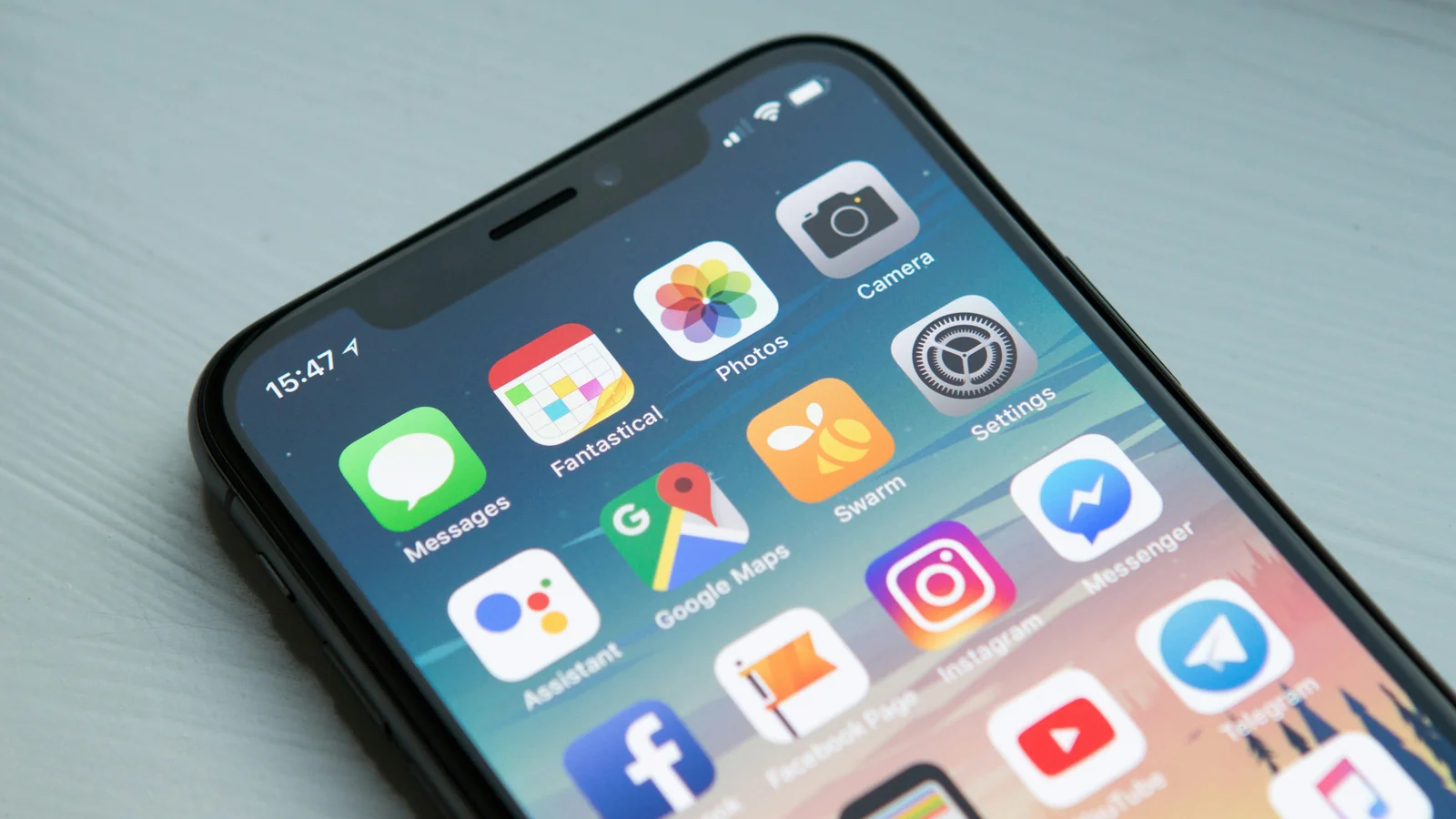
Badges are often the most persistent form of notification. A small number on an app icon can create a feeling that something remains unfinished even when the message is not important. Turn badges off for apps that do not need a visible count.
Keep badges where they support a real workflow, such as missed calls, a task list or an inbox you review deliberately. Even then, consider whether an unread count helps you decide what to do or merely creates pressure. A badge is not a priority system. It only tells you that an app has something to show.
Clean up old badges before judging the new system. Open the relevant apps, archive or clear what you can, and then observe what returns. If the badge fills immediately with low-value activity, remove it rather than trying to keep the number at zero.
Use a checking rhythm for quiet updates
Reducing notifications works best when you replace interruption with a checking rhythm. Choose a few moments for email, social messages, news or shopping updates. The rhythm can be loose, but it should be visible enough that you are not relying on impulse.
For example, you might check personal messages after breakfast, email before lunch and again near the end of the working day. A freelancer may need a more flexible pattern, while someone in a reactive role may need an approved channel that stays open. The point is to separate routine checking from every other activity.
Keep the rhythm practical. If you choose too many checking windows, the phone remains the centre of the day. If you choose too few, you may worry that you are missing something and return to constant checking. Adjust after a week based on the messages that actually require a response.
Handle group chats without losing people
Group chats are a common source of noise because they combine important and casual conversation. Mute a group when you still want to read it but do not need every message immediately. Pin or mark a small number of direct conversations so they remain easy to find without leaving the whole app noisy.
Tell people how to reach you for urgent matters if your normal response time changes. A simple message can reduce the fear that silence means something is wrong. Use a separate channel for time-sensitive work where your role requires it, and make sure everyone understands the difference.
Leave groups that no longer serve you when leaving is socially or professionally appropriate. Archiving can remove visual clutter, but it does not change the underlying pattern if the group remains active. Digital calm sometimes requires a clear decision rather than a clever setting.
Review the system like a small experiment
After making changes, observe what happens rather than assuming the phone is now calm. Notice the number of times you pick it up, the moments when you still feel compelled to check, and which important alerts you might have missed. The first result may be uncomfortable because you are noticing a habit that was previously hidden by noise.
Keep a short note for seven days. Record one or two examples: “checked the phone during writing because of a badge” or “missed a useful delivery update because it was buried”. Use these observations to adjust one setting at a time.
Do not chase a perfect notification-free life. Your phone is a communication tool, and some work or family situations require availability. A calmer system gives important information a reliable route and gives everything else a place that does not interrupt the moment you are living.