Decide which storage problem you are solving
A full photo library can mean several different things. Your phone may be running out of local space, your cloud account may be near its quota, or you may simply be unable to find a picture from last summer. Those problems need different fixes. Deleting pictures from a device may free local space but do nothing to reduce a cloud library. Moving images to a computer may help the account limit but create a new backup responsibility.
Before you change anything, check where the originals live. A phone may be syncing its camera roll to a cloud service, storing a smaller version locally or keeping full-resolution files on the device. A camera may write to a memory card that has never been copied elsewhere. A messaging app may save a second copy of a photograph. Make a note of the devices, accounts and folders involved.
Then choose a practical goal. “Find family photos from 2022 in under a minute” is more useful than “organise everything”. “Keep a second copy of the best images on a drive” is clearer than “free up space”. You may need both, but separate them so that a tidy library does not create the risk of losing an irreplaceable image.
Protect the originals before deleting
Do not begin with a mass delete. First confirm what is backed up and how the backup works. A synchronised photo library is designed to keep devices in step; deleting a synced image on one device may delete it elsewhere too. That is not the same as an independent backup. Read the current help page for the service you use and verify a few files from a second device or exported folder.
For important photographs, keep another copy on a separate device or storage medium. A portable drive can be useful, but it can also fail, be lost or remain unplugged for years. A backup is only useful if it is complete and can be opened. Choose a small test folder, copy it, then confirm the files open on another device before deleting anything from the original library.
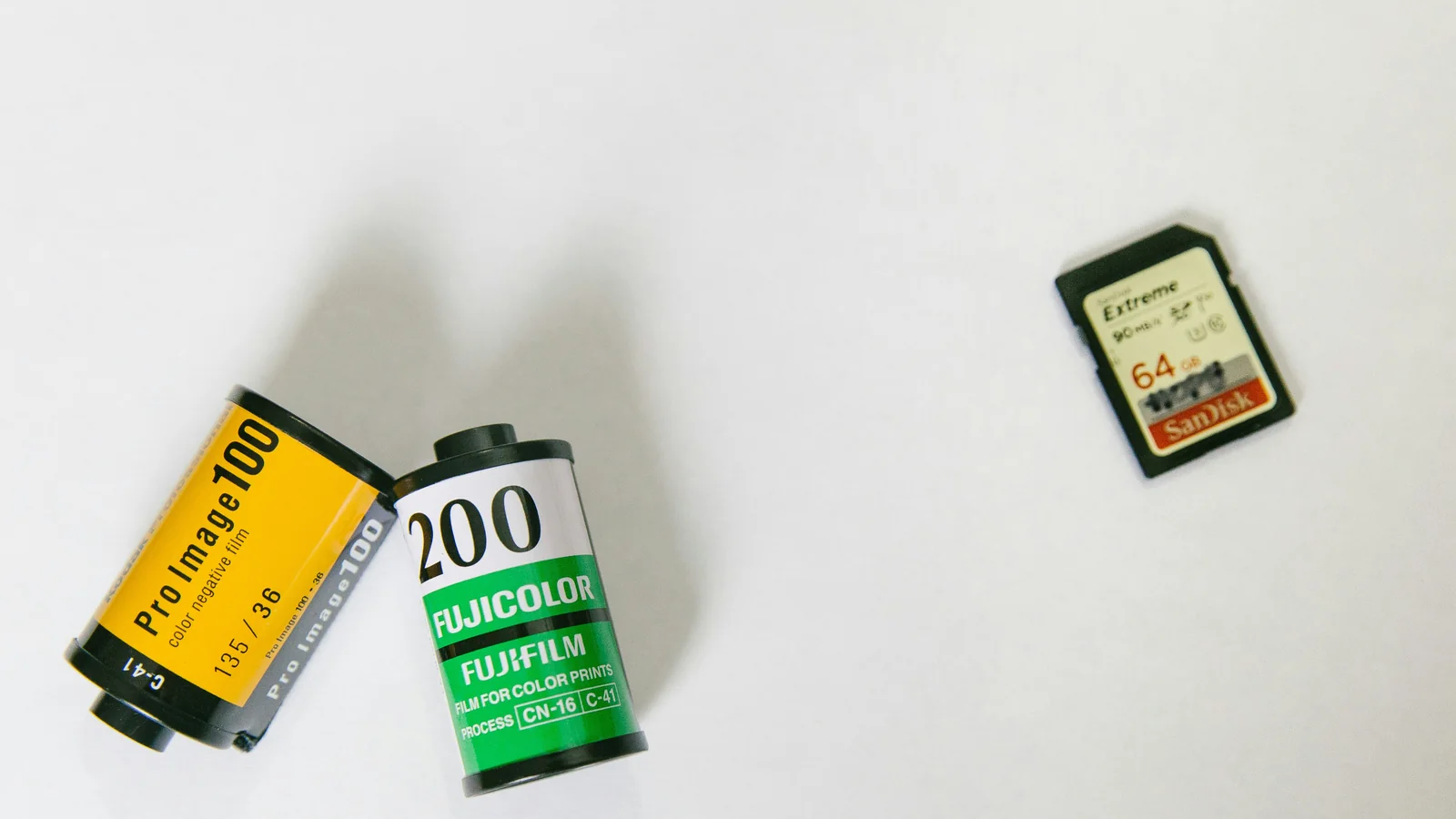
Do not rely on a single memory card as an archive. Cards are convenient for capture, but they can be misplaced or damaged. After importing a camera’s files, verify the copy and keep the original card untouched until you know the transfer succeeded. If you use a cloud service, check whether it uploads full-resolution originals or a reduced version and whether changes or deletions sync across devices.
Use a light structure that you can remember
A good filing system should work when you are tired and importing a hundred images. One practical structure is year, then month or project: 2026/2026-04 Family weekend. Use consistent date formats so folders sort in calendar order. For a small library, a year folder with a few named events may be enough. Avoid creating a separate folder for every outing if you rarely search that way.
Choose names that answer a future question. “Edinburgh weekend” is easier to recognise than “Trip 3”. “Kitchen renovation before” has more meaning than “IMG_4821”. Keep the names short and use the same format across folders. The goal is not to describe each image in a sentence; it is to give a future search enough context.
Albums can provide a second view without duplicating files. A photograph may belong in a year folder and also appear in an album for a person, trip or project. Some photo services treat albums as references to images; ordinary folders may work differently. Check the behaviour of your chosen app before moving or deleting files. Do not assume that removing an item from an album deletes the original, or that deleting an original leaves every album intact.
Remove obvious clutter in small passes
Start with categories that are easy to recognise: screenshots, downloaded graphics, duplicate exports, accidental bursts and blurry images. These often take up space without representing memories you want to keep. Sort one category at a time and review before deleting. A screenshot of a boarding pass may be disposable after travel, while a screenshot of a receipt or instruction may still matter.
Videos can use more space than still images, so review them separately. Keep the clips that tell a story, then remove accidental recordings, near-identical takes and files that were created to send once in a message. If you are unsure whether a video is backed up, do not delete it until you confirm the second copy exists.
Duplicates deserve care. Two photographs may look similar but capture different expressions or moments. Automated duplicate tools can identify exact or near-identical files, but their suggestions need human review. Keep the highest-quality version only when it contains the same moment and metadata you want. If a lower-resolution copy has edits or annotations, preserve those until you know they are not needed.
Work for ten or fifteen minutes at a time. A manageable session keeps the task from turning into a weekend project. Use the same rule for every pass: remove only what you can recognise confidently, and leave uncertain photographs in place. A review folder or album can hold undecided items for a later date.
Search better before adding more folders
Modern photo apps often search by date, place, people or objects. Those features can help you find an image without manually filing every frame, but their labels may be imperfect and depend on the app’s processing. Try a few searches for a known photograph and see how your library indexes it. Keep simple albums for the collections you return to repeatedly, not for every possible subject.
Favourites can mark images you would be sad to lose, but favouriting is not a backup. Use it as a review queue: once a month, revisit the favourites and decide which should be exported or printed. If the feature becomes another endless list, use a small “keep” album and review it seasonally.
Preserve enough context to understand a photograph later. When exporting from a camera or editing app, keep the date and location data if those details matter to you. If privacy is important, remove location metadata from images before sharing them publicly. The right choice depends on where the photo will go; a family archive and a public social post have different needs.
Understand local space, cloud sync and backups
Cloud storage can be convenient, but changing a setting may alter where originals are stored. A phone option such as “optimise storage” may keep smaller local versions while relying on the cloud for full-resolution copies. If you are offline, the original may not be available immediately. Confirm which files remain local before travelling or deleting an account.
Cloud sync also means that deletions can propagate. The recycle bin or recently deleted folder may have a limited retention period, and clearing it can be permanent. Do not empty a bin until you have verified that the intended files are safely stored elsewhere. Read the service’s current retention rules because they can change.
External drives and cloud storage can complement one another. You might keep the active library in a photo app and periodically export a dated archive to a drive. Label the drive with the date of the last copy. Every few months, connect it and open a sample of older files. This simple check catches a drive that has quietly stopped being usable.
A monthly routine that stays small
Choose one regular moment to import and review. After an event, copy images from a camera or shared folder into the library, check that the transfer succeeded and then clear the camera card only when the backup is confirmed. On a phone, a monthly pass over screenshots and videos may be enough. Keep the routine short and tied to an existing habit, such as the first weekend of the month.
At the end of a review, make one quick note: where the new images were placed, whether a backup completed and whether any folder needs a follow-up. You do not need to classify every photograph as soon as it is taken. The system should make capture easy and retrieval predictable, not interrupt the moment with administrative work.
If several people contribute to the library, agree on the destination and naming rule before importing. Shared albums, family libraries and household drives can all work, but permissions and ownership vary. Avoid placing sensitive photographs in a shared account without checking who can see them and what happens if someone leaves the service.
Keep your archive portable
Photo services change interfaces, storage plans and export tools. An archive is more resilient when you can retrieve the original files outside a single app. Periodically export a small selection and verify that image files and dates survive. If an export creates sidecar files or folders, keep them together until you understand what information they contain.
Use common image formats where possible and preserve the original camera files if image quality or editing flexibility matters. Edited copies can sit alongside originals with a clear name such as portrait-edited, but avoid ambiguous names like final-final. If you edit heavily, keep a separate project folder for the source and working files.
A well-organised photo library does not need to be perfect. It needs a reliable second copy, a naming pattern you can remember and a short routine for removing obvious clutter. Solve the space problem you actually have, check the behaviour of sync before deleting and keep irreplaceable images outside a single account. That makes the collection easier to enjoy and easier to carry forward.